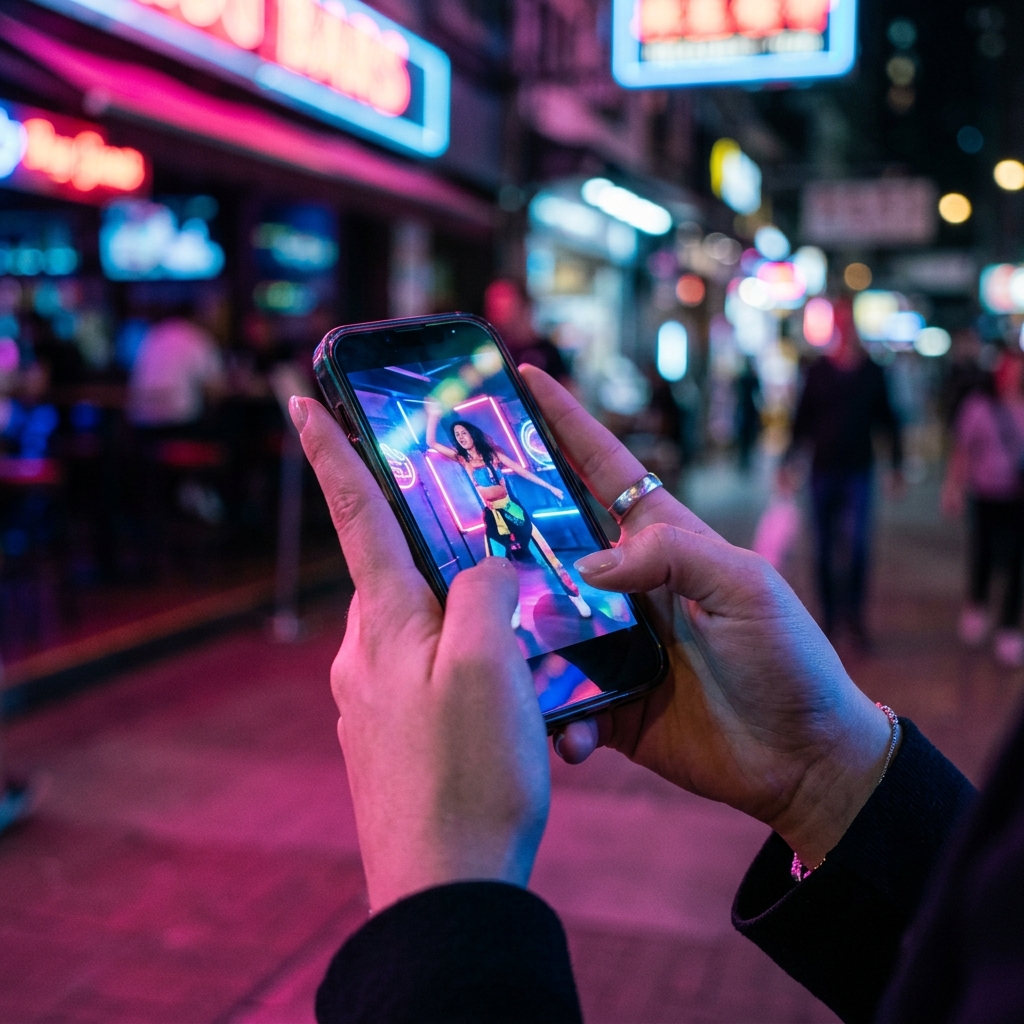
Every time you save a TikTok video using the app's built-in download feature, it stamps a TikTok watermark on the video — the bouncing logo and the creator's username. This is fine for casual saving, but if you want to share the video on other platforms, use it as a reference, or simply have a clean copy, that watermark is a problem.
This guide shows you exactly how to download TikTok videos without the watermark in HD quality, for free, on every device. No app installation required — just a web browser.
Why Remove the TikTok Watermark?
- Cleaner presentation — Share videos on Instagram, WhatsApp, or YouTube without TikTok branding
- Professional use — Use as creative reference without distracting overlays
- Personal archives — Save clean copies of content you enjoy
- Cross-platform posting — Repurpose your own TikToks on other social media without the logo
- Better viewing experience — Watch videos without UI elements blocking the content
How to Download TikTok Without Watermark Using GripVid
GripVid's TikTok Downloader automatically removes the watermark and delivers a clean, HD video with original audio intact.
Desktop (Windows, Mac, Linux)
- Open TikTok in your browser or app
- Copy the video URL from the address bar or Share menu
- Go to gripvid.proofmatcher.com/tiktok
- Paste the URL and click Download
- Select quality (up to 1080p) and click Download MP4
iPhone
- Open TikTok app, find the video, tap Share then "Copy Link"
- Open Safari and go to gripvid.proofmatcher.com/tiktok
- Paste the URL, tap Download, select quality
- The MP4 saves to your Files app. Open it and tap Share then "Save Video" for Camera Roll
Android
- Copy the TikTok video link from the app
- Open Chrome and visit gripvid.proofmatcher.com/tiktok
- Paste and download — the MP4 goes to your Downloads folder
How Does Watermark Removal Work?
When you save a video through TikTok's built-in download, the app generates a new version of the video with the watermark composited on top. The original, clean video still exists on TikTok's servers.
GripVid fetches the original video file directly from TikTok's content delivery network — the version before the watermark is applied. This means you get the exact same quality as the original upload, with no watermark, no re-encoding, and no quality loss.
This is fundamentally different from tools that try to "remove" the watermark through cropping or image processing, which always degrades quality.
TikTok URL Formats That Work
GripVid accepts all TikTok link formats:
tiktok.com/@username/video/1234567890— Standard video linkvm.tiktok.com/AbCdEf/— Shortened share linktiktok.com/t/ZTR...— Mobile share linkm.tiktok.com/v/...— Mobile web link
Quality Options
TikTok videos are typically uploaded in 1080x1920 vertical resolution. Available download options:
- 360p — Smallest file size. Good for saving data
- 480p — Moderate quality
- 720p HD — Great quality for phone screens. Recommended for everyday use
- 1080p Full HD — Maximum quality. Best for sharing or archiving
Extract TikTok Audio as MP3
Want just the sound? A trending song, viral audio, or voiceover? GripVid lets you download TikTok audio as MP3. Click "Download MP3" instead of MP4 to get a 192kbps audio file. Perfect for identifying songs or saving sound clips for personal use.
TikTok Save vs GripVid: What Is the Difference?
| Feature | TikTok Save | GripVid |
|---|---|---|
| Watermark | Yes — always present | No — completely clean |
| Video quality | Compressed | Original HD (1080p) |
| Audio | Included | Included |
| Works if saves disabled | No | Yes (public videos) |
| MP3 audio extraction | No | Yes |
| Quality selection | No | Yes (360p-1080p) |
| Requires app | Yes | No — browser only |
What If Downloads Are Disabled?
Some TikTok creators disable the in-app save feature. When this happens, you cannot use TikTok's built-in download. However, if the video is publicly visible, GripVid can still download it because it fetches the video directly from TikTok's servers rather than using the app's save API.
Common Issues and Fixes
Video not found error
Make sure you copied the full URL. Partial links or links to profiles (not specific videos) will not work.
Download is slow
Try selecting a lower quality (720p instead of 1080p) for faster downloads on slow connections.
Video still has watermark
This should never happen with GripVid. If you see a watermark, make sure you are using gripvid.proofmatcher.com/tiktok and not a different tool.
How to Download TikTok Videos on iPhone
iPhone users should use Safari for the most reliable download experience. Chrome on iOS has limited file download support, making Safari the better choice for saving video files.
- Open the TikTok app and find the video you want to save
- Tap the Share button or three-dot menu and select "Copy Link"
- Open Safari and navigate to gripvid.proofmatcher.com
- Long-press the input field and tap "Paste"
- Tap Download — the MP4 saves to your Files app under Downloads
To save to Camera Roll: Open the downloaded file in Files, tap the Share button, and select "Save Video." The video now appears in your Photos app and can be shared via AirDrop, iMessage, or social media.
Pro Tip: Bookmark gripvid.proofmatcher.com in Safari for instant access whenever you find a TikTok video worth saving. You can also add it to your Home Screen for app-like convenience.
How to Download TikTok Videos on Android
Android makes downloading videos straightforward with Chrome's native file download support:
- Open TikTok and copy the video link via the Share button
- Open Chrome and visit gripvid.proofmatcher.com
- Paste the URL and tap Download
- Select your preferred quality and tap Download MP4
- The file downloads to your Downloads folder and appears in your notification tray
The downloaded video is immediately playable in your gallery app, Google Photos, VLC, MX Player, or any other video player installed on your device. You can share it through WhatsApp, Telegram, or any messaging app.
How to Download TikTok Videos on PC and Mac
Desktop downloads work identically across all major browsers and operating systems:
- Open TikTok in your browser and find the video you want to download
- Copy the video URL from your browser's address bar
- Open a new tab and go to gripvid.proofmatcher.com
- Paste the URL, click Download, then click Download MP4
- The file saves to your Downloads folder
Works in Chrome, Firefox, Safari, Edge, Opera, and Brave on both Windows and macOS. The downloaded MP4 can be played with VLC, Windows Media Player, QuickTime, or any standard video player.
Troubleshooting TikTok Downloads
Video URL not recognized
Make sure you copied the complete URL. Some apps add extra tracking parameters — try removing everything after the main video ID. If the share function gives you a shortened URL, that works too.
Download has no audio
This is extremely rare with GripVid because it automatically merges video and audio streams. If it happens, refresh the page and try downloading again. The issue is usually a temporary server hiccup.
Video quality is lower than expected
Download quality depends on the original upload quality. If a creator uploaded in 720p, you cannot download in 1080p — the higher option simply will not appear. TikTok also applies compression to all uploads, which may reduce quality below the original source.
Download is slow
Longer videos and higher quality selections take more time to process. Try downloading in 720p for faster results while maintaining good quality. Ensure your internet connection is stable — Wi-Fi typically delivers faster downloads than mobile data.
Private or restricted content
GripVid can only access publicly available videos. Content from private accounts, restricted groups, or behind login walls cannot be downloaded through any third-party tool.
Why Use GripVid Instead of Other TikTok Downloaders
- No app installation required — Works entirely in your browser. No software to download, no extensions to install, no storage space wasted
- No registration or login — You never need to create an account or share any personal information. Open the site, paste a URL, download
- Zero ads and pop-ups — Unlike most video download sites that assault you with fake buttons, redirect chains, and pop-up storms, GripVid has a clean, ad-free interface
- Multi-platform support — GripVid downloads from 12+ platforms including YouTube, Instagram, TikTok, Facebook, Twitter/X, Reddit, Pinterest, Snapchat, Twitch, Vimeo, and Dailymotion. One tool for everything
- Automatic audio merging — Many platforms store video and audio as separate streams. GripVid automatically detects and merges both so you always get a complete video with sound
- HD and 4K quality — Download in the highest quality available, up to 4K Ultra HD where supported
- Completely free — No premium tiers, no trial periods, no hidden fees. Every feature is available to every user
Related Download Guides
GripVid supports 12+ platforms. Check out our other comprehensive download guides:
- TikTok No Watermark Guide — Detailed watermark removal
- Instagram Reels Downloader — Save Instagram content
- YouTube Shorts Downloader — Save Shorts in HD
- YouTube to MP3 Converter — Extract audio from videos
For a complete overview of all supported platforms and how they compare, read our Best Online Video Downloaders 2026 comparison.
Frequently Asked Questions
Is it really free?
Yes. GripVid is 100% free with no registration, fees, or hidden costs.
Will the TikTok creator know I downloaded their video?
No. GripVid downloads are completely anonymous. No notifications are sent to creators.
Can I download TikToks on iPhone without an app?
Yes. GripVid works in Safari on iPhone. No app installation required.
Can I download TikTok slideshows?
TikTok photo slideshows with music are handled differently. GripVid will download the video version if available.
Is it safe to use?
Yes. GripVid has zero ads, zero pop-ups, and no suspicious behavior. It is the safest TikTok download tool available.
Download TikTok Videos Without Watermark Now
Get clean, HD TikTok videos without the logo overlay. GripVid's TikTok Downloader removes watermarks automatically and works on every device.